How to organize storage containers so you can find what is inside
A useful box inventory answers two questions: what is in the container, and where is the container? Start with one box you open repeatedly. Give it a recognizable name, record its place, and add the items you often look for.
This walkthrough uses the current Itemsbase app, which is in development for iPhone and Android. Join the early-access list for availability updates.
1. Name the place before the contents
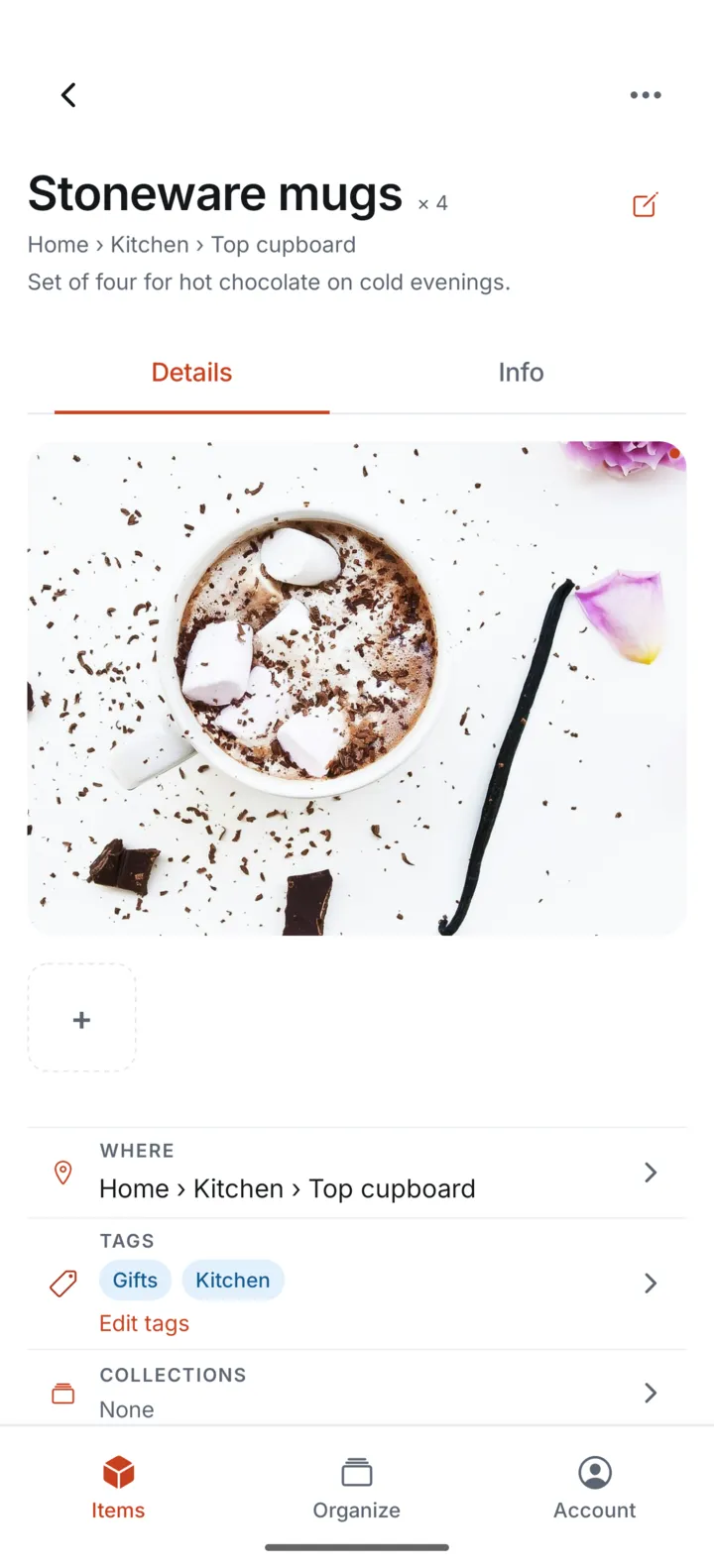
In Itemsbase, create or choose the Location, such as Home. Add a Room, such as Kitchen, and a Container, such as Top cupboard. A container can be a cupboard, drawer, box, or bag; choose the physical boundary that helps you find things.
For several similar boxes, use names you can distinguish in person: Winter clothes, Spare cables, or Camping cookware. If you put a label on a box, use the same wording in your inventory. A label is a naming aid, not an automatic scanning feature.
2. Record the items you need to find again
Add an item, take or choose a photo, and select its Room or Container. A short name such as Stoneware mugs is easier to search than a vague name such as Kitchen things. Optional details can wait; you do not need to catalogue the whole room before the first entries become useful.
3. Keep physical places separate from labels
Use the Container to answer where an item lives. Use a Tag for a label such as travel or electronics. A travel tag can include things stored in several rooms, but it should not replace the item's actual storage place.
Every item belongs to one Location. Room and Container are optional, so you can save something before deciding where it belongs. Avoid inventing a deeper nested box hierarchy; choose a clear Room and Container instead.
4. Update the inventory when you move things
When a charger leaves Spare cables for a travel bag, update its place. If only half the contents move, update those items rather than renaming the original box. The aim is a reliable current answer, not a history of every move.
Try a simple check after packing: search for one item and confirm that the displayed place matches the box in front of you. Then browse the Container to see whether its list reflects what you packed.
What to do before storing a box somewhere without signal
Open the relevant inventory and photos while connected. Itemsbase can search locally available inventory and queue new work offline, but another device cannot receive those changes until syncing resumes. Read the offline inventory guide before relying on a remote copy.